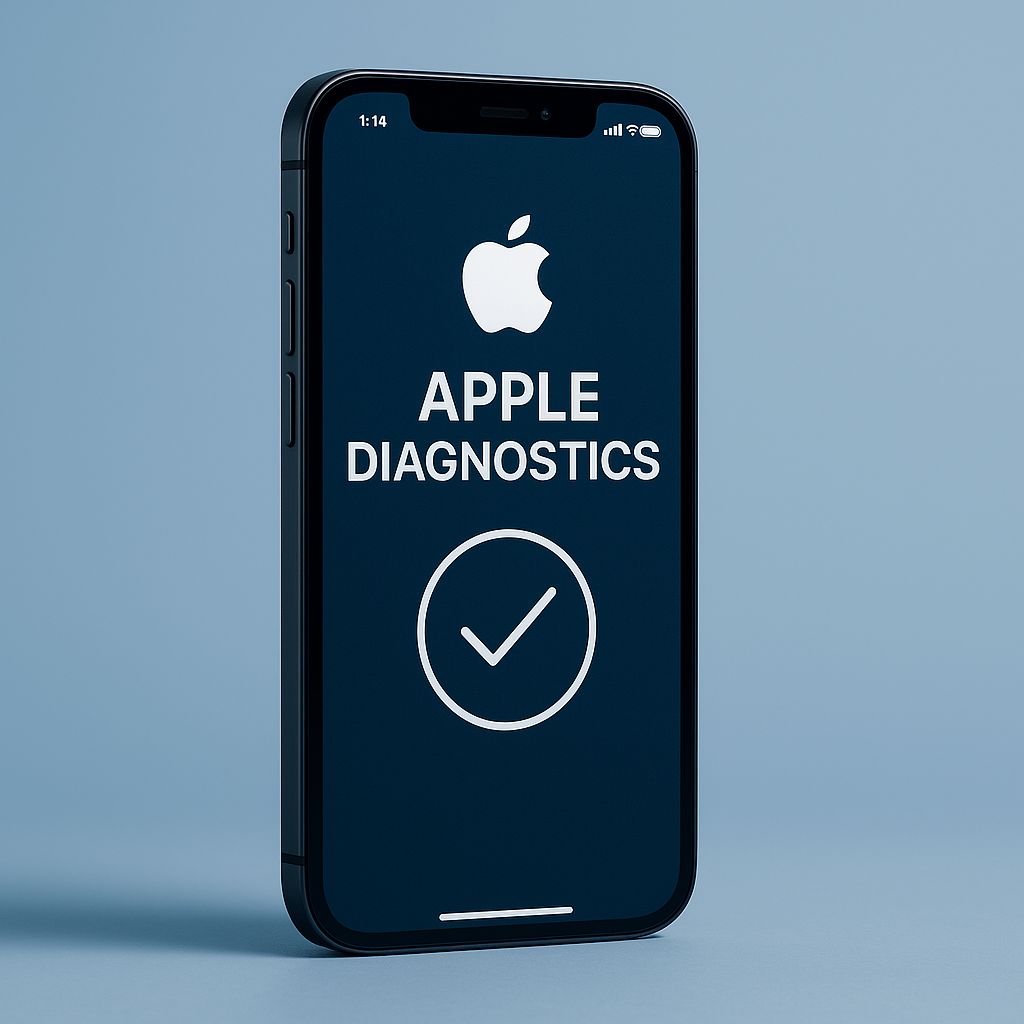
Apple Diagnostics is a built-in tool available on iPhones and other Apple devices to help identify hardware-related issues. It’s a handy utility when you’re troubleshooting problems with your device, such as unexpected shutdowns, touchscreen malfunctions, or other performance issues. Here’s what you need to know:
How to Use Apple Diagnostics on iPhone
- Preparation:
- Ensure your iPhone is updated to the latest version of iOS.
- Back up your device data, as diagnostics won’t delete data, but it’s a good practice.
- Accessing Diagnostics:
Apple doesn’t directly provide a public method for running diagnostics on iPhones like they do on Macs. Instead, diagnostics are typically run by:- Visiting an Apple Store or an Apple Authorized Service Provider.
- Using remote diagnostics via the Apple Support app or support.apple.com.
- Steps for Remote Diagnostics:
- Contact Apple Support and explain the issue.
- They may send you a link to initiate a diagnostic test.
- Follow the instructions provided to run the test. Your iPhone will send diagnostic data to Apple, which helps them analyze the problem.
- What It Tests:
Apple Diagnostics checks components like:- Battery health
- Network connectivity (Wi-Fi, cellular)
- Sensors (accelerometer, gyroscope)
- Display and touchscreen functionality
- Other hardware components
- Viewing Diagnostic Data Yourself:
- If you want to see some diagnostic data, you can go to:
- Settings > Privacy & Security > Analytics & Improvements > Analytics Data.
- This section contains logs, though it’s more technical and not user-friendly.
- If you want to see some diagnostic data, you can go to:
- Interpreting Results:
- If issues are found, you’ll receive a reference code. You can provide this to Apple Support for more information.
Additional Tips
- Battery Issues: If you’re concerned about battery health, go to Settings > Battery > Battery Health & Charging.
- Third-Party Tools: There are apps like iMazing or CoconutBattery (on Mac) that provide more insights into your iPhone’s health, but they’re not as detailed or official as Apple Diagnostics.