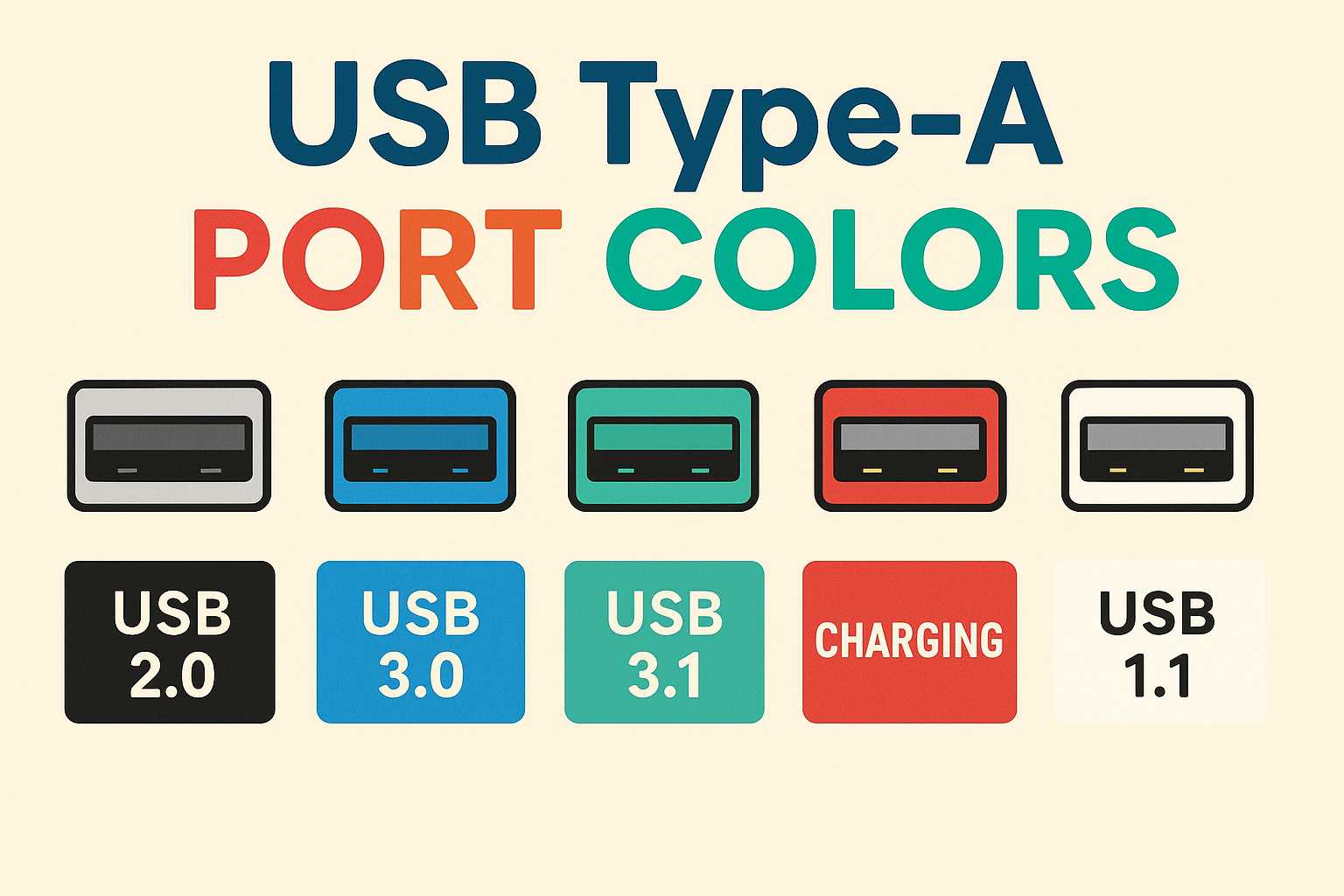
When you look closely at the USB ports on your computer or devices, you may notice different colors such as black, blue, red, or light blue.
Are these just design choices, or do they actually mean something?
In fact, USB Type-A port colors often indicate the USB standard, speed, or special functions.
In this article, we explain the meaning of each color in a clear and beginner-friendly way.
- USB Type-A Port Colors at a Glance
- 1. Black USB Ports – Standard USB 2.0
- 2. Blue USB Ports – USB 3.0 (SuperSpeed)
- 3. Light Blue / Teal Ports – USB 3.1 Gen2
- 4. Red / Yellow / Orange Ports – High-Power Charging USB
- 5. White USB Ports – USB 1.1 (Legacy)
- Don’t Rely on Color Alone
- Summary: USB Port Colors Made Simple
USB Type-A Port Colors at a Glance
| Color | Typical Standard | Max Speed | Main Features | Common Uses |
|---|---|---|---|---|
| Black | USB 2.0 | Up to 480 Mbps | Standard data transfer | Mouse, keyboard |
| Blue | USB 3.0 / 3.1 Gen1 | Up to 5 Gbps | High-speed “SuperSpeed” | External HDD/SSD |
| Light Blue / Teal | USB 3.1 Gen2 | Up to 10 Gbps | Faster data transfer | Video editing, SSDs |
| Red / Yellow / Orange | USB 3.x + charging | Depends on standard | High-power charging, power-on USB | Smartphone charging |
| White | USB 1.1 | Up to 12 Mbps | Very low speed (legacy) | Old peripherals |
| Green (rare) | Vendor-specific | — | Special gaming or custom features | Gaming PCs |
⚠️ Note: USB port colors are not strictly standardized. Always check the manufacturer’s specifications for accuracy.
1. Black USB Ports – Standard USB 2.0
Black ports usually indicate USB 2.0, the most common and widely compatible standard.
Key characteristics:
- Maximum speed: 480 Mbps
- Suitable for low-bandwidth devices
- Common for keyboards, mice, and printers
Not recommended for large file transfers.
2. Blue USB Ports – USB 3.0 (SuperSpeed)
Blue ports typically indicate USB 3.0 or USB 3.1 Gen1.
Why they matter:
- Up to 10× faster than USB 2.0
- Ideal for external hard drives and SSDs
- Backward compatible with USB 2.0 devices
👉 If speed matters, choose a blue port.
3. Light Blue / Teal Ports – USB 3.1 Gen2
These ports support even higher speeds (up to 10 Gbps).
- Suitable for large data transfers
- Useful for high-resolution video files
- Color varies depending on manufacturer
4. Red / Yellow / Orange Ports – High-Power Charging USB
These ports are designed for charging devices, even when the PC is powered off or in sleep mode.
Typical features:
- “Always-On USB” functionality
- Higher current output
- Supports fast-charging standards (e.g., BC 1.2, Quick Charge)
👉 Perfect for charging smartphones and tablets.
5. White USB Ports – USB 1.1 (Legacy)
White ports indicate USB 1.1, an outdated standard.
- Maximum speed: 12 Mbps
- Rarely found on modern devices
- Only useful for very old hardware
Don’t Rely on Color Alone
While colors provide helpful clues, they are not officially enforced standards.
Some manufacturers use custom colors or reuse colors for branding purposes.
📌 For guaranteed accuracy, always check the device specifications or manual.
Summary: USB Port Colors Made Simple
| Color | Meaning |
|---|---|
| Black | Standard USB (USB 2.0) |
| Blue | Fast USB (USB 3.0) |
| Light Blue | Very fast USB (USB 3.1 Gen2) |
| Red / Yellow | Charging-focused USB |
| White | Legacy USB (USB 1.1) |
Data transfer → Blue tones
Charging → Red/Yellow
Basic use → Black